Click Notifications
Click notifications let you receive an email or browser push notification whenever one of your links is clicked. You can choose exactly which workspace members should be notified for each link.
Key features
- Per-link configuration - Enable notifications on the links that matter to you
- Choose recipients - Select which workspace members receive notifications for each link
- Email and push notifications - Get notified by email and optionally via browser push notifications on your desktop or mobile device
- Slack notifications — Post click notifications to a Slack channel by connecting the Linkly Slack app and running
/linkly notifyin your channel - Automatic debouncing - At most one notification per link every 15 minutes, so you won't be overwhelmed by high-traffic links
- Bot filtering - Only real human clicks trigger notifications. Bot and crawler clicks are excluded
- One-click unsubscribe - Every notification email includes an unsubscribe link to stop notifications for that link
How to enable click notifications
Go to Links and click on the link you want to configure.
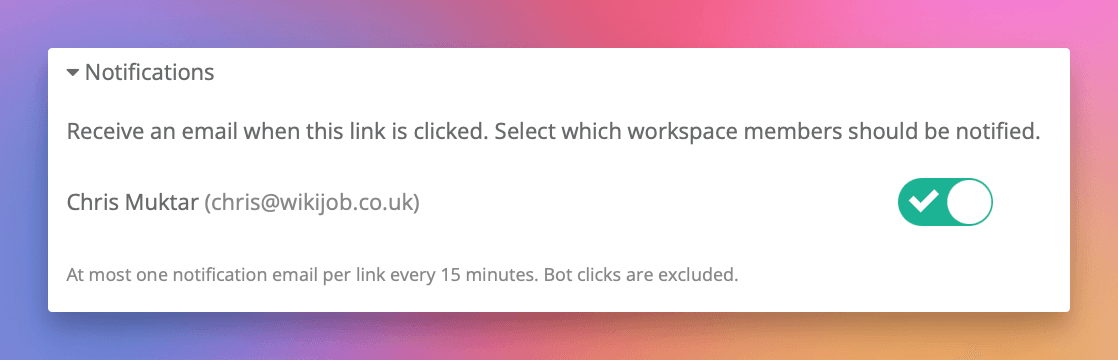
Scroll down to the Notifications section and expand it.
Toggle on the workspace members who should receive notifications.
Each member has their own switch. You can enable notifications for one person or multiple people.
Click Save Link.
The selected members will now receive an email the next time this link is clicked.
Browser push notifications
In addition to email, you can receive instant browser push notifications when your links are clicked. Push notifications appear on your desktop or mobile device even when Linkly isn't open.
Enabling push notifications
- 1Go to Account Settings (under the Account tab)
- 2In the Browser Notifications section, toggle the switch to enable push notifications for that browser
- 3When prompted by your browser, click Allow
Once enabled, any link with click notifications turned on will also send push notifications to your device. You can enable push notifications on multiple browsers and devices — each one will receive notifications independently.
Clicking a push notification takes you directly to the traffic report for the link that was clicked.
Troubleshooting push notifications
If you're not receiving push notifications:
- Make sure Focus mode or Do Not Disturb is turned off on your device
- Check that notifications are allowed for your browser in your device's notification settings
- Try the Test button next to the toggle in Account Settings to verify delivery
- If you recently changed browsers or cleared site data, you may need to toggle push off and back on to re-subscribe
Slack notifications
You can also receive click notifications in Slack. When the Linkly Slack app is connected to your workspace, enable Send to Slack on any link to post a notification to your configured channel.
Setting up Slack notifications
- 1Install the Linkly Slack app — click Add to Slack in the Slack integration page or from the Click Notifications section on any link.
- 2In Slack, go to the channel where you want to receive notifications and run
/linkly notify. - 3Back in Linkly, edit a link and toggle Send to Slack on in the Click Notifications section.
Notifications include the link name, short URL, country, browser, and a direct link to the analytics for that link.
Slack notifications use the same 15-minute debouncing as email: at most one notification per link per 15 minutes.

What's in the notification email?
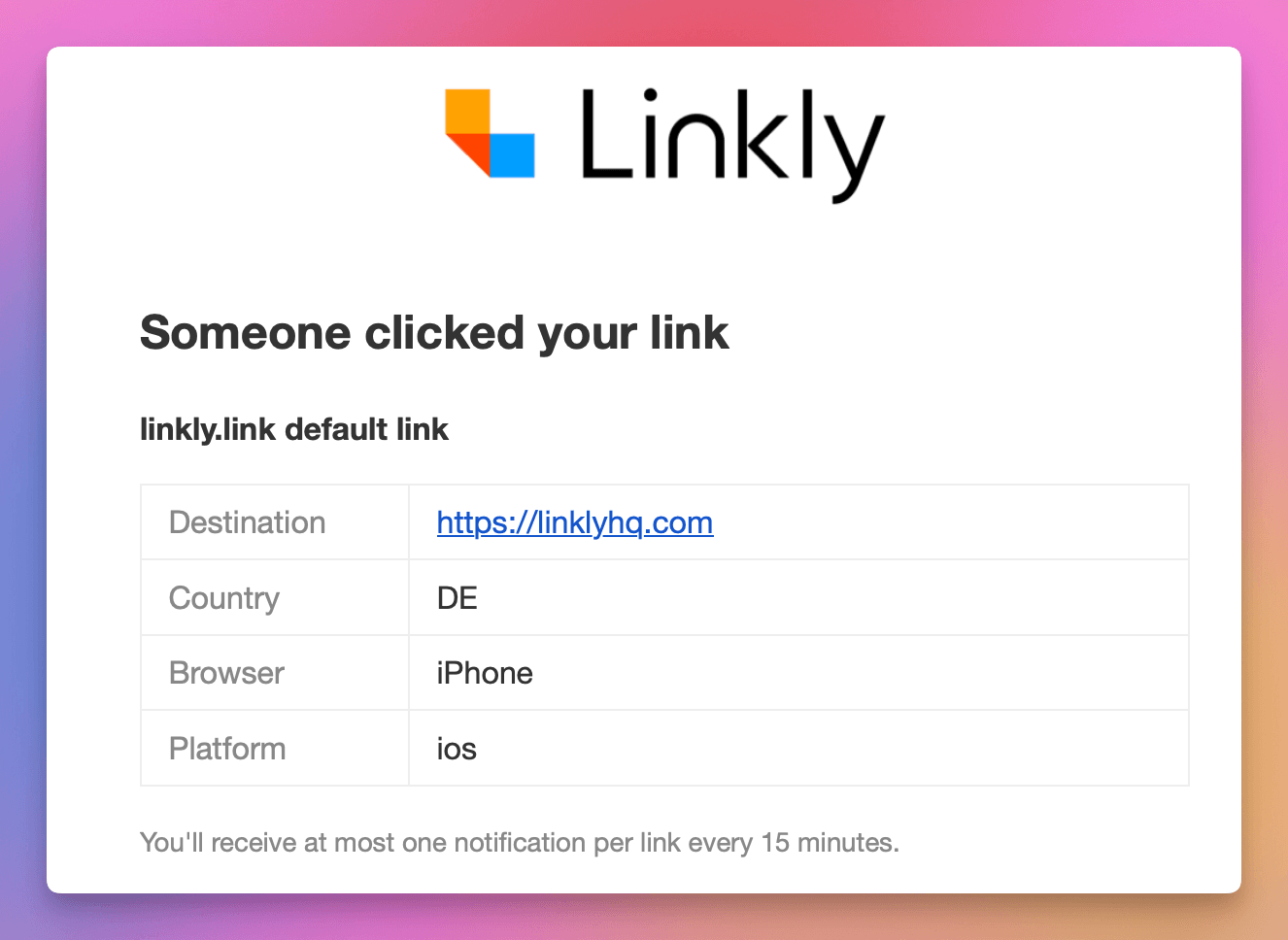
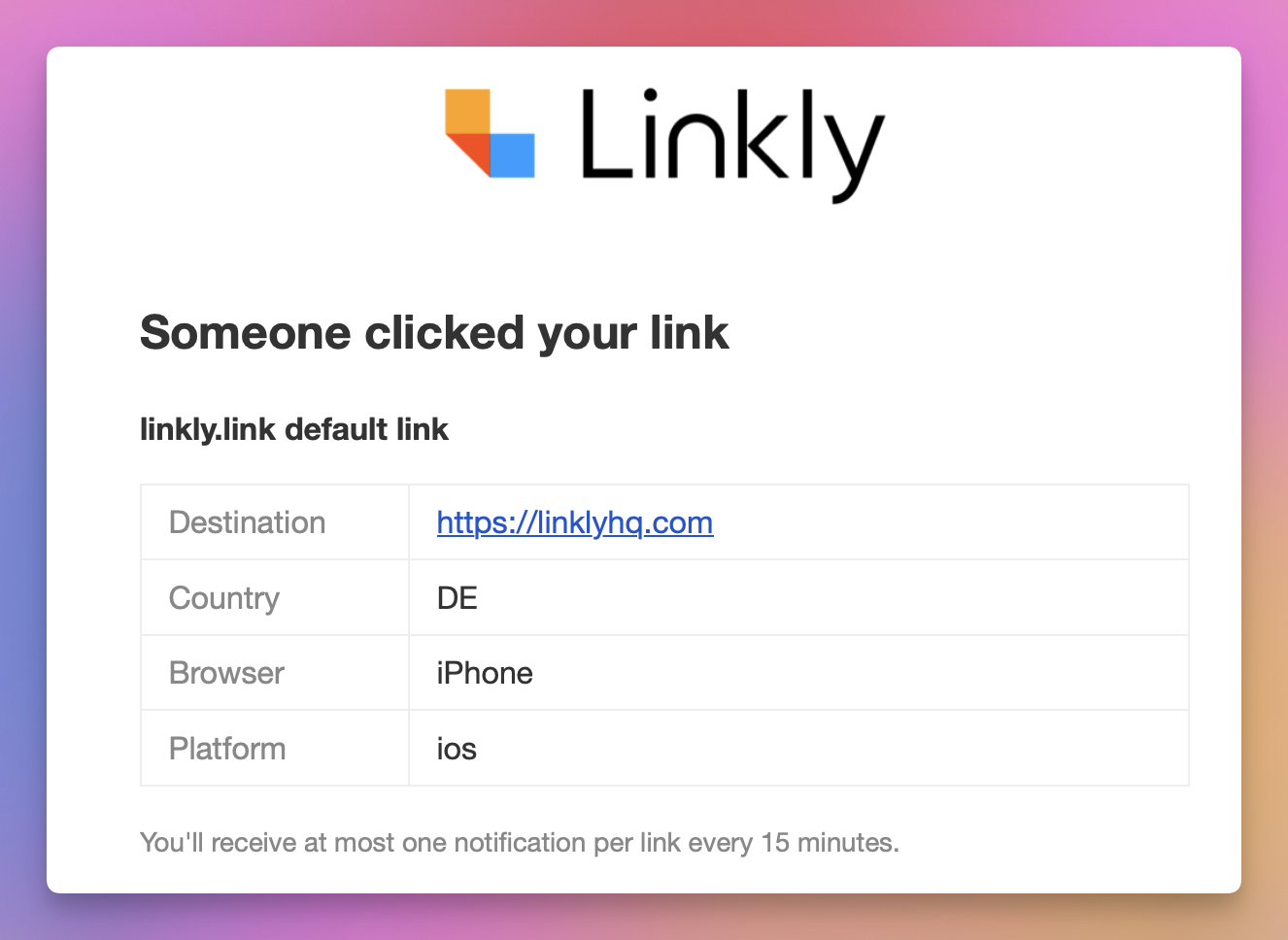
Each notification email includes:
- Link name - The nickname of the link that was clicked
- Destination - Where the visitor was redirected to
- Country - The country the click came from
- Browser - The browser used (Chrome, Safari, Firefox, etc.)
- Platform - The device platform (desktop, iOS, Android, etc.)
- View Analytics button - Quick link to your workspace dashboard
How debouncing works
To prevent you being flooded when a popular link gets many clicks, Linkly sends at most one notification per link every 15 minutes. This applies to both email and push notifications.
For example, if your link receives 50 clicks in 10 minutes, you'll receive one email for the first click. After 15 minutes have passed, the next click will trigger another notification.
Debouncing is per-link, not per-workspace. If you have notifications enabled on three different links, each link has its own 15-minute window.
Unsubscribing
There are two ways to stop receiving click notifications for a link:
- 1
From the email - Click the "Unsubscribe" link at the bottom of any notification email. This instantly removes you from that link's notifications without needing to log in.
- 2
From the link settings - Edit the link, scroll to the Notifications section, and toggle your switch off.
Email clients that support RFC 8058 (such as Gmail and Apple Mail) will also show a one-click unsubscribe button at the top of the email.
API access
You can configure click notifications via the API by including the notify_user_ids field when creating or updating a link:
{
  "url": "https://example.com",
  "name": "My Link",
  "notify_user_ids": [123, 456]
}
The notify_user_ids field accepts an array of user IDs. You can find user IDs via the workspace users API endpoint (GET /api/v1/workspace/:workspace_id/users).
Set notify_user_ids to an empty array [] to disable notifications.
Set notify_slack: true to enable Slack notifications for a link (requires the Linkly Slack app to be installed and a channel configured via /linkly notify). Set notify_slack: false to disable.
Click notifications FAQs
Why didn't I receive a notification for a click?
There are several possible reasons. The click may have been from a bot or crawler, which are automatically excluded. Another notification for the same link may have been sent in the last 15 minutes (debouncing). The click may also have been excluded by your workspace's IP exclusion settings, or click recording may be paused because your account is over its plan limit. For push notifications, also check that Focus mode or Do Not Disturb is not enabled on your device.
Can I get notifications for every single click?
Notifications are debounced to at most one per link every 15 minutes. This applies to both email and push notifications and is to protect you from being overwhelmed on high-traffic links. If you need real-time data for every click, consider using webhooks instead, which fire for every click with no debouncing.
Do click notifications count against my plan limits?
No. Click notifications are an included feature and do not count against your plan's click or link limits.
Can I choose which types of clicks trigger notifications?
Currently, all non-bot clicks trigger notifications. You cannot filter by country, device, or other criteria. If you need conditional notifications, consider using webhooks with an automation platform like Make or Zapier to apply your own filters.
Can I receive click notifications in Slack?
Yes. Install the Linkly Slack app, run /linkly notify in your desired channel, then toggle Send to Slack on for any link. See the Slack integration guide for details.
Plan availability
Available on Starter and above
Get 100 short links and track 500 monthly clicks for free.