
Using Linkly with ChatGPT
Create short links and QR codes directly in ChatGPT using the official Linkly GPT.
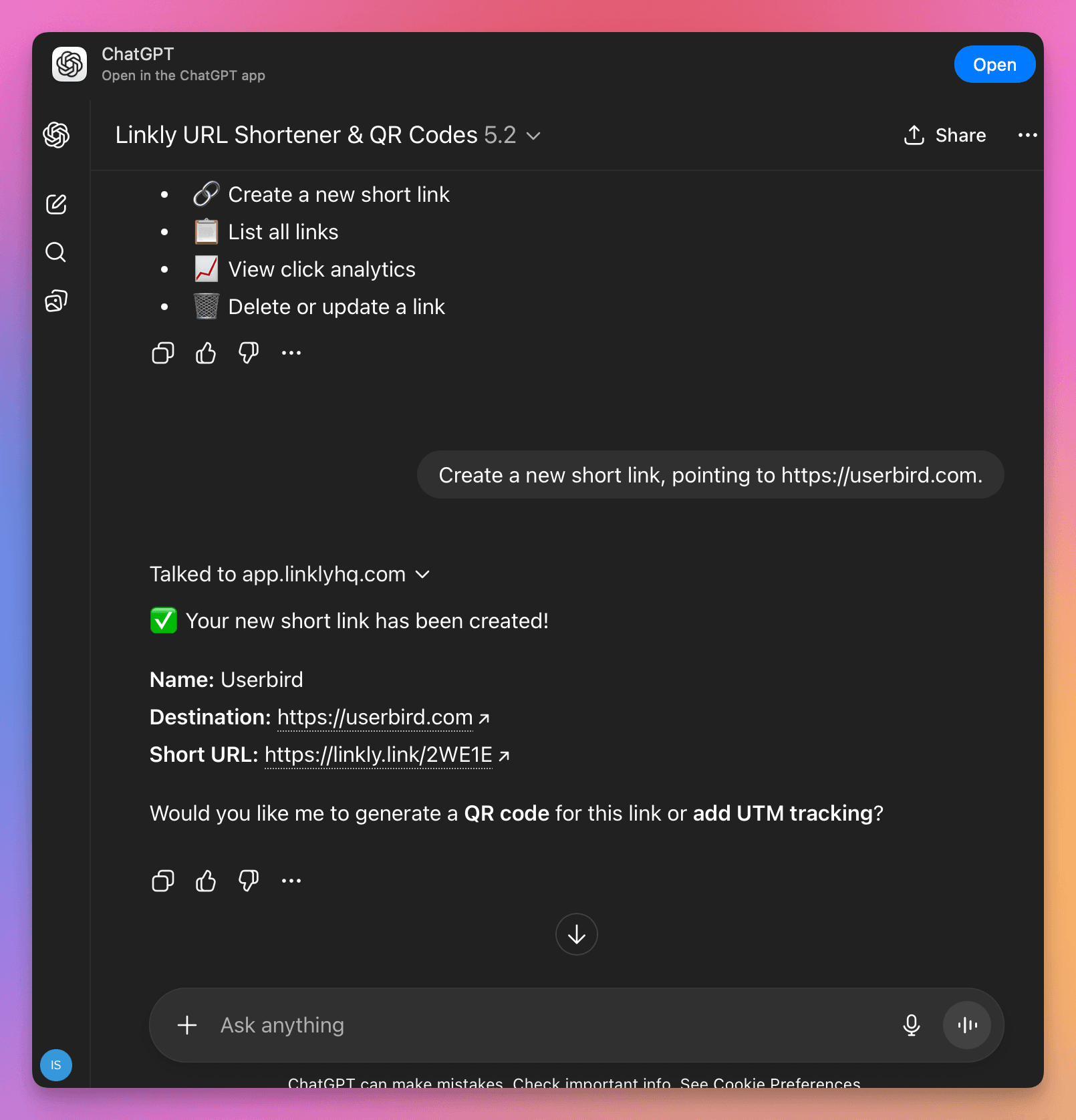
Get started
Simply open the GPT and start chatting. You can ask it to:
- Shorten URLs - "Shorten this URL: example.com/my-long-page"
- Create QR codes - "Make a QR code for my website"
- Track clicks - "How many clicks did my last link get?"
- Manage links - "List my recent links"
Requirements
- A ChatGPT Plus subscription (the GPT uses Actions which require a paid plan)
- A Linkly account - sign up free
First time setup
When you first use the GPT, it will ask you to connect your Linkly account. Click "Sign in" and authorize access. That's it - you're ready to go.
How to connect your Linkly workspace to ChatGPT
Visit the ChatGPT Custom GPT Page
Ask ChatGPT to Connect to your Workspace
ChatGPT will redirect you to Linkly to select your workspace and authorize it.
Start chatting
You: Shorten
https://example.com/summer-sale
GPT: Done! Your short link is https://linkly.link/2WE16
You: How many clicks did that get?
GPT: Your link has received 47 clicks - mostly from the US and UK.
Privacy
Linkly cannot see your ChatGPT conversations. The GPT only communicates with Linkly when you ask it to perform an action like creating a link.
Beta - we want your feedback
This integration is currently in beta. If you have suggestions or run into any issues, please let us know via the chat widget.
Alternative: MCP server
For power users who want deeper integration with the ChatGPT Desktop App, you can also use the Linkly MCP Server.
Related
FAQs
Do I need a ChatGPT Plus subscription?
Yes, the Linkly GPT uses Actions which require a ChatGPT Plus, Team, or Enterprise subscription.
Plan availability
Available on Pro and above
Get 100 short links and track 500 monthly clicks for free.